Email domains
Tell the app which email domains belong to which organization. Unlike Jira Service Management’s own setting, it covers customers you already have.
How it differs from Jira Service Management's own setting
| Jira Service Management's domain setting | Customer Roster domain rules | |
|---|---|---|
| Existing customers | Not touched | Added |
| New customers | Added | Added, usually within minutes |
| Domains per organization | Up to 10 | No set number; a list too long for one rule to store (thousands of domains) is refused with a message, and nothing is saved |
| Bulk changes | One organization at a time, by hand | From a CSV, with a dry run |
| Removing a domain | Removes no one | Removes only people the app added through it |
The two don't talk to each other: Jira Service Management has no way for apps to read or set its own domain list. You can use both. Why the native setting skips existing customers: read the guide.
The Domains table
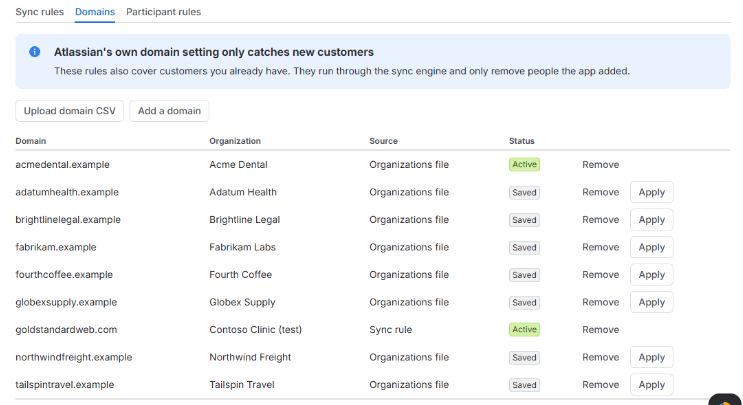
Rules → Domains shows every domain the app manages: domain, organization, where it came from (an organizations file, a sync rule, a domains file or added by hand) and its status: Active (applied by a rule), Paused (its rule is paused), Saved (waiting for Apply) or Conflict. A public domain you allowed also carries a Public domain tag. Press Add a domain, or Upload domain CSV (domains-template.csv: domain,organization), check the dry run, confirm.
The file needs a domain column and an organization column (headers such as Email domain or Company work too; a file with no header row is read as domain,organization). The organization can be its name or its id, and it must exist already: create new organizations with an organizations import. Several domains in one cell can be separated with ;. One file can change up to 50 organizations. The dry run marks each row New, Existing, Conflict, Public domain, Duplicate, Check (two organizations share that name: use the id), Skipped (an empty row) or Error, with a note that says why, such as Not an email domain or No organization with this name. It shows how many people would join each of the first 10 organizations in the file; applying covers them all.
Apply shows a preview first; the button names the result, for example Apply · add 12 people. Remove takes a domain off.
Applying a domain puts it on that organization's domain rule (made for you the first time) and syncs at once, so existing customers are added straight away. Taking a domain off syncs again and removes only the people the app added through it; taking off an organization's last domain deletes its domain rule. Domains that came in with an organizations import are saved but not applied until you choose Apply for that organization, because an import never changes memberships it didn't preview.
How matching works
- Exact domain.
acmedental.commatchesanna@acmedental.com, notanna@eu.acmedental.com. - Subdomains on request. Add
*.acmedental.comto match every subdomain. - Most specific wins. If
eu.acmedental.compoints at Acme Dental EU and*.acmedental.comat Acme Dental, people at eu.acmedental.com go to Acme Dental EU. - Upper and lower case don't matter. Plus-addresses (
anna+help@…) match on the domain as usual.
Atlassian's own domain list
Apps can't read Jira Service Management's own email-domain setting, so the Domains table shows only Customer Roster's domains.
Conflicts
If one domain points at two organizations, the row is marked Conflict and the app adds no one through that domain until you fix it. It never guesses: a wrong guess would show one client's shared requests to another.
Public email domains
Domains like gmail.com, outlook.com and icloud.com are refused: "everyone at gmail.com" is never one company. The built-in list, and a box for your own additions, are in Settings → Public email domains. If you really need one (for example a small client whose staff all use one provider), you can turn the check off for that one rule — you type the domain itself to confirm. Prefer adding those people by import instead.