Sync rules
A rule says: these people belong in this organization. The app adds them, and takes away only the people it added when they leave.
What a rule is
A rule has sources and a target organization:
- Jira groups — everyone in the group belongs in the organization (Jira users, for example your MSP client's staff who have Jira accounts).
- Email domains — every customer whose email is at that domain belongs in the organization, including customers you already have. See Domains.
- Or both.
Optionally the rule also links the organization to service projects you choose.
What a sync does
- Adds anyone in a source who isn't in the organization yet.
- Removes only people the app added, and only when they've left every source of every rule that put them there.
- Never removes a member who was already there, or whom you or an agent added.
- Respects manual removals. If an agent removes someone the app added, the app doesn't put them back. They're listed on the rule under Won't be added back. Mark a rule Required if everyone in its sources must stay in.
No sync sends anyone email. See Email behavior.
Create a rule
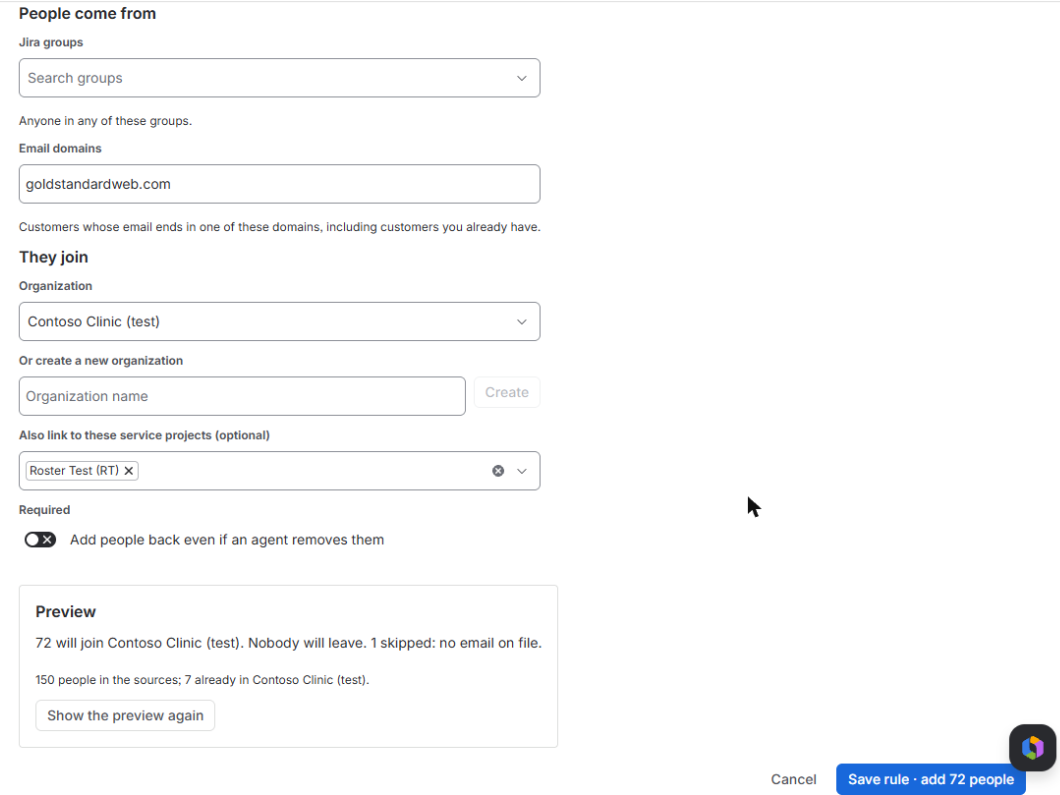
- Rules → Sync rules → New sync rule.
- Under People come from, pick Jira groups and/or type Email domains (comma-separated).
- Under They join, pick the organization, or type a name under Or create a new organization and press Create.
- Optionally pick projects under Also link to these service projects.
- Leave Required (Add people back even if an agent removes them) off unless people must not be removable by agents.
- Press Show preview and read it, for example: 38 will join Acme Dental. 4 will leave (only people this app added). 2 skipped: no email on file.
- Save. The button says what happens: Save rule · add 38 people, remove 4. Above 1,000 changes you see a warning first (change the limit in Settings). Change anything and the page asks you to show the preview again.
The rule's page
Open a rule from Rules → Sync rules to see its status (Waiting, Syncing, Synced, Paused or Error) and three lists: Members the app added, Won't be added back (people an agent removed) and Activity. The buttons: Sync now, Pause rule / Resume rule, Edit, Undo last sync and Delete rule.
When syncs run
- Every hour (or every day: Settings → How often to check rules) the app checks cheaply whether anything changed, and syncs the rules that did.
- Once a day it lists every source in full anyway.
- Once a week it re-checks every membership it added: this is how it notices agents' removals and members re-added by hand.
- New customers who match a domain rule are usually added within minutes.
- Sync now on a rule, or on the organization's page, runs it straight away; it's available again 10 minutes later.
- On very large sites a sync can carry on in the next hour: each site gets a fair share of the app's Atlassian rate limit.
Pause, undo, delete
- Pause all (top right) stops every sync and participant rule until you press Resume syncing. Imports aren't paused.
- Undo last sync on a rule reverses exactly what that sync added and removed, then pauses the rule so the next sync doesn't redo it.
- Delete rule and choose what happens to the people it added: remove them, or keep them. The button says which, for example Delete rule · remove 60 people.
- Settings → Remove everything this app did takes back every membership, project link and request participant the app added, everywhere, and deletes every sync rule and participant rule. Participants stay on requests already resolved, and customer accounts and organizations the app created stay. You type the number of changes to confirm. Use it before uninstalling.
Limits
- A rule can cover up to 20,000 person × organization pairs. Bigger rules can't be saved: split them.
- Public email domains such as gmail.com are refused, unless you turn the check off for that one rule by typing the domain. See Domains.
- If your license lapses, syncs stop adding people. Nothing is removed, and undo and Remove everything still work.