Export
Download customers and organizations as CSV — for one service project or the whole site.
What's in it
| File | Columns |
|---|---|
| Customers | Account ID, display name, email (where Jira lets the app see it), account type (portal-only customer or Jira user), active, organizations |
| Organizations | Organization ID, name, the app's email domains, linked projects, member count, organization detail fields |
It includes portal-only customers and Jira users who are customers of the project.
How
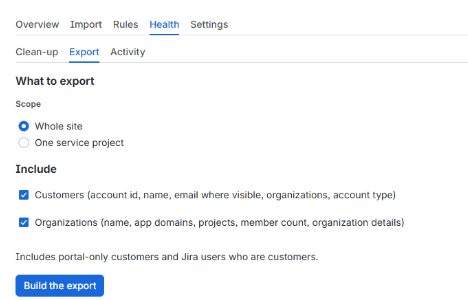
- Health → Export (or the project's own Customer Roster page, for project admins).
- Under Scope, choose Whole site or One service project. Under Include, tick customers, organizations or both.
- Press Build the export. It is built in the background (a site with about 60 customers took 5 seconds on our test site).
- Press Download customers CSV and Download organizations CSV. If your browser blocks the download, Download didn't start? Show the file here shows the first 300 rows on the page to copy.
Cells that start with =, +, - or @ are made safe, so a spreadsheet won't run them as formulas.
The file is built inside Atlassian's cloud from your site's data and downloaded to your computer; nothing is sent anywhere else. Treat the file as personal data: it has names and email addresses. The app keeps a built export for one day so you can download it, then deletes it.
A project export lists the project's customers and the members of organizations linked to it; the organizations column only names that project's organizations.