Import customers and organizations
Upload a CSV, match your columns, read the dry run, then confirm. Nothing changes and no one is emailed until you do.
CSV templates
Use these as a starting point, or your own spreadsheet. Replace the example rows and the project key SUP with your own.
- customers-template.csv — email, name, organization, project
- organizations-template.csv — name, domains, project
- customer-details-template.csv — email plus detail fields (see Details)
- domains-template.csv — domain, organization (see Domains)
The app has templates with the same columns: Download customer template and Download organization template on the upload step. From Excel, use File → Save As → CSV UTF-8. The app reads commas, semicolons or tabs between columns. It doesn't read .xlsx files. A file may have at most 100 columns and no cell longer than 2,000 characters; over either, the upload is refused with a message saying which.
What goes in each file
Customers
| Column | Needed? | Notes |
|---|---|---|
| Yes | One customer per row. Duplicates in the file are flagged. | |
| Name | No | The display name. If blank, Jira Service Management shows the email address. |
| Organization | No | One or more organizations, separated by ; or | (never commas: company names have commas). New organization names are created. Several columns like Org 1, Org 2 are combined. |
| Project | No | Service project keys the customer is added to, separated by ;. A key that doesn't exist is a row error. |
| Detail fields | No | Any column named like one of your customer detail fields. See Details. |
Organizations
| Column | Needed? | Notes |
|---|---|---|
| Name | Yes | Existing organizations are matched by name; new ones are created. |
| Domains | No | Email domains, separated by ;. They're saved in Rules → Domains for that organization and applied only when you press Apply there. |
| Project | No | Service projects to link the organization to. |
| Detail fields | No | Organization detail fields. |
Step 1: choose the file and the email choice
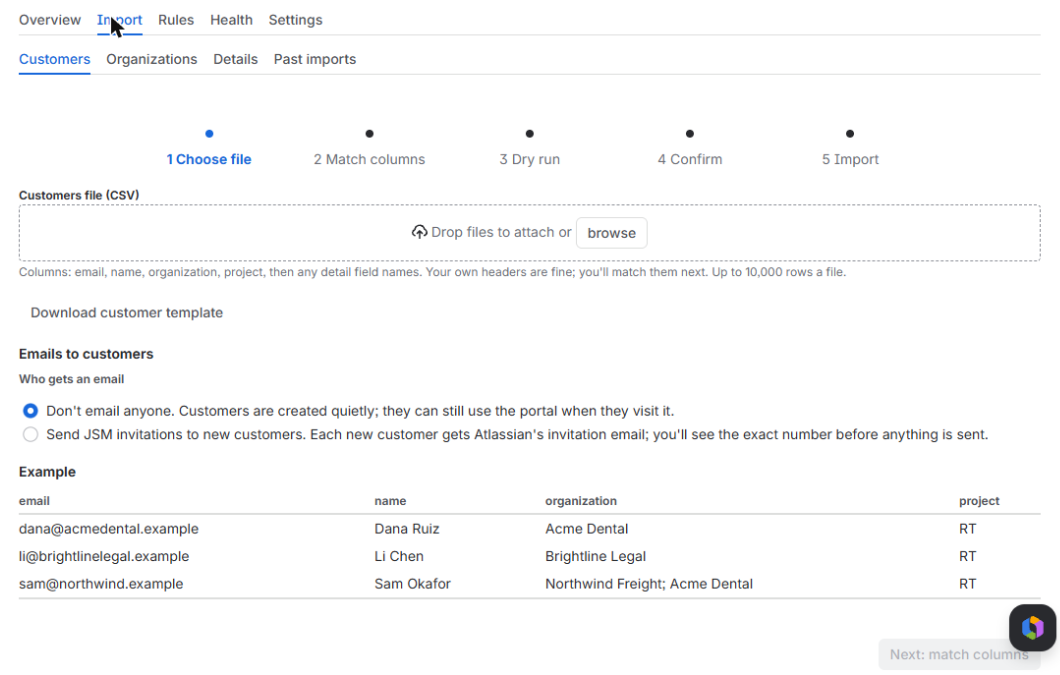
Go to Import and pick the Customers, Organizations or Details sub-tab. Drop the file on Customers file (CSV), Organizations file (CSV) or Details file (CSV), or press browse. For customers, choose under Who gets an email:
- Don't email anyone (default). Customer accounts are created silently. Jira Service Management lists them as Invited · Unverified email with a Resend invite link, even though no email went out.
- Send JSM invitations to new customers. Each new customer gets one invitation email from Jira Service Management, so each new customer's row needs a project (the portal they're invited to). You see the exact number before you confirm, and you type it to go ahead.
Step 2: match columns
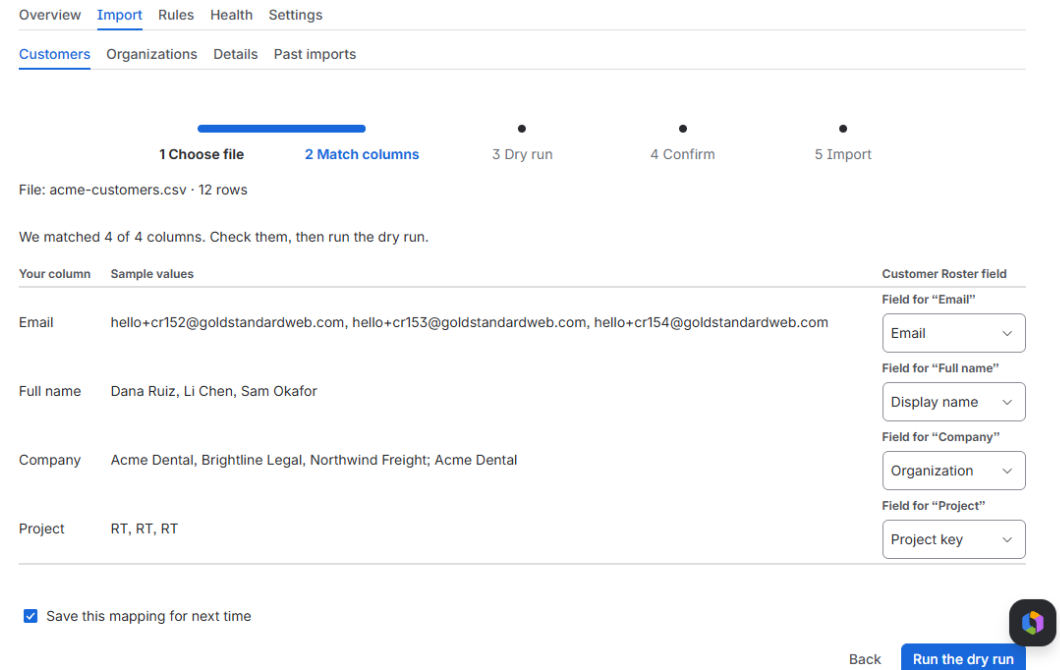
Your own headers are fine. The app guesses which column is which — it ignores case and spaces and knows common names like E-mail, Company, Org, Client, Full name, Service desk — and shows three sample values from each column so you can check.
- Any column it can't place shows Not imported until you pick a field for it.
- Every customers file needs an email column; every organizations file needs a name column.
- Tick Save this mapping for next time to have the same headers matched the same way next time.
- Press Run the dry run.
Step 3: the dry run
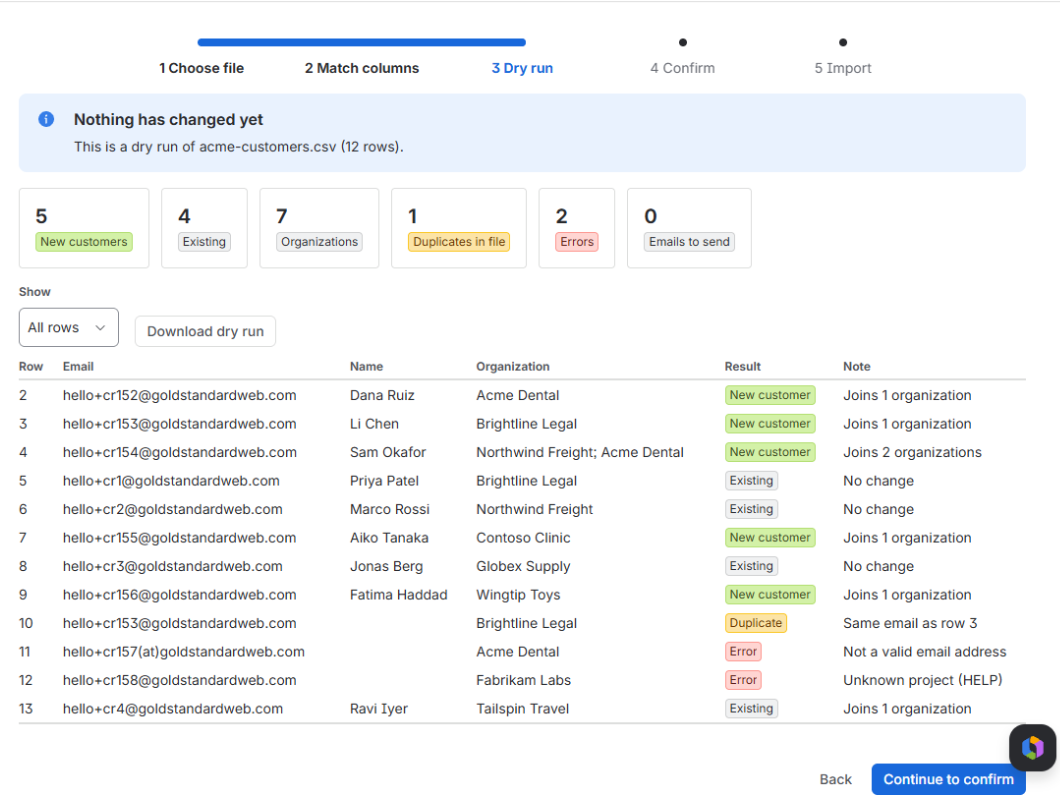
The app checks every row against your site and shows a result for each. Nothing has changed yet.
| Result | Meaning |
|---|---|
| New customer / New organization | Will be created |
| Existing | Already there; only the missing memberships, links or details are added (the note says Joins 1 organization or No change) |
| Duplicate | The same email (or organization) appears earlier in the file (Same email as row 3) |
| Error | Missing or bad email, unknown project, deactivated account, a name over 255 characters, an organization name two organizations share (they differ only by capital letters), a detail value that doesn't fit the field, or, when you send invitations, a new customer with no project. In an organizations file also a missing name, a bad or public email domain, or a domain another organization already has. The note says why; the row is skipped |
| Skipped | An empty row |
Totals sit at the top: new customers, existing, organizations, duplicates in file, errors and emails to send. Filter the rows with Show, fix your file and upload again if you need to, or Download dry run as a CSV (the page shows the first 1,000 rows; the download has every row). Then press Continue to confirm.
Step 4: confirm
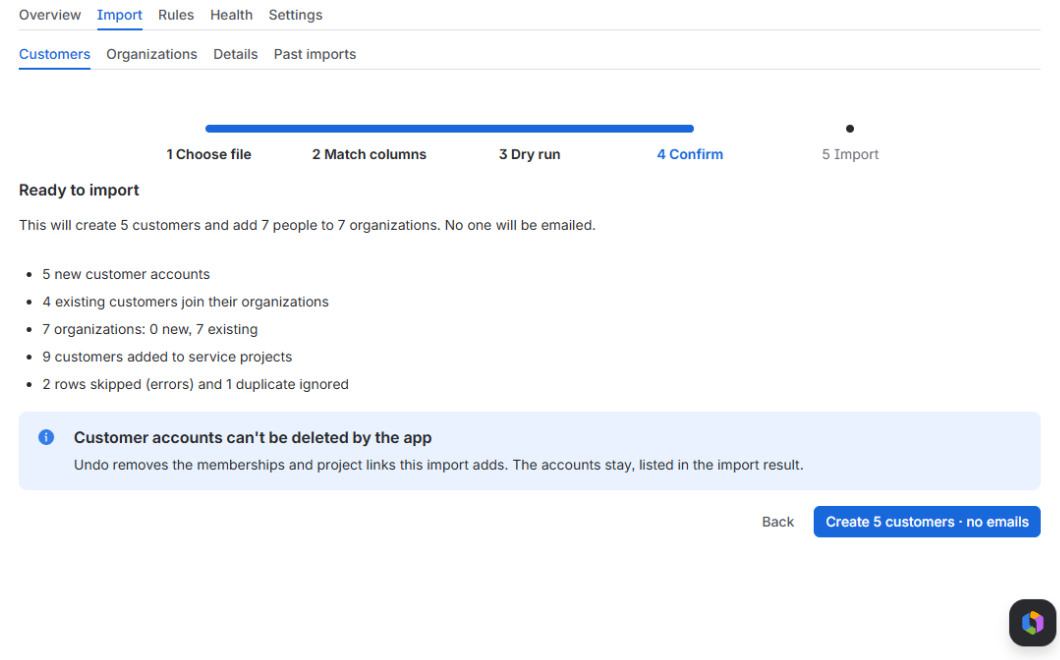
You get one plain sentence, for example: This will create 312 customers and add 398 people to 37 organizations. No one will be emailed. The button says the same: Create 312 customers · no emails.
You type a number to confirm only when it can't be undone:
- the import sends any invitations (type the number of invitations), or
- it creates more new customer accounts than your limit (500 by default; change it in Settings), because the app can't delete accounts.
Step 5: progress and results
- The import runs in the background in batches. You can leave the page; it carries on and survives interruptions.
- One import runs at a time on a site. Files over 10,000 rows: split them.
- Cancel import stops after the current batch. Rows that failed are listed with the reason under Failed rows; Retry failed rows tries them again. Download result saves the outcome of every row.
- An import that makes no progress for 30 minutes counts as stalled. Cancel import then stops it at once, or the app restarts it within the hour. A stalled dry run stops and asks you to run it again.
Undo an import
Import → Past imports (last 20) lists the 20 most recent imports with their counts and status: Not started, Ready to import (press Continue), Done, 1 failed (Retry failed rows), Canceled or Undone. A canceled import that stopped part-way offers Resume while it still holds its rows; one canceled before it ran changed nothing and has nothing to undo. Going Back from the column or dry-run step cancels that upload and clears its rows at once.
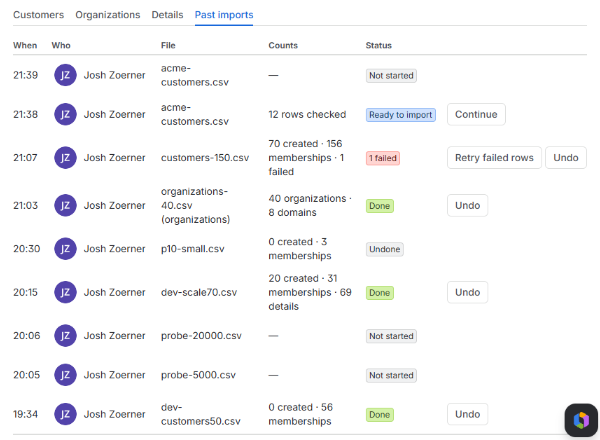
Undo (the button reads Undo import · take back 57 changes) removes the organization memberships and project links the import added and puts detail values back to what they were (if nobody changed them since). Customer accounts and organizations the import created are listed, not deleted: Jira Service Management keeps them. The list (Customer accounts this import created) shows on the import's result, in the undo confirm, and from What it created in Past imports, with a CSV download. Remove them in Jira Service Management if you want them gone. Detail values someone changed since the import are left as they are and listed too (2 values left as they were in Past imports), with a CSV.
What happens to your file
The file and the email addresses in it are kept in the app's storage on your site only while the import needs them. Finished rows are cleared when the import finishes; failed rows are kept so you can retry them, until you clear them with Clear the kept row details, undo the import, or 7 days pass without activity. See Privacy.