Participant rules
Add a group, or everyone in the request’s organization, as participants on new requests. The one feature whose job is to send email — so it starts off.
Email-sending feature. Participants get Jira Service Management's emails about the request. Every participant rule is off until you turn it on, and turning it on means typing its weekly email estimate.
What a rule says
When a request is created in project X (optionally: of request type Y), add these people as participants. The people are either:
- Members of the request's organization, so everyone there gets updates without having to share the request, or
- Members of a group (a Jira group; Jira admins only), or
- Members of an organization you choose. On a project's own page, the organization must be linked to that project.
Most people to add per request (the form starts at 10; it can't go above the site-wide maximum in Settings, 20 by default) stops a big group from being added to every request. Create one with Rules → Participant rules → New participant rule; it is saved Off.
Only people who can see the request can be added. On a project whose customers are restricted, a participant must be a customer of the project (directly, or through an organization linked to it). Jira Service Management refuses anyone else, and the app skips them and adds the rest.
"The request's organization" only works for requests shared with an organization when they are raised (customers choose it on the portal). Requests raised for someone else by an agent or by email usually have no organization yet.
The weekly email estimate
Before you turn a rule on, the app counts the matching requests in the last 30 days and shows about how many more emails a week the rule means. It counts each new participant's first notification, the updates after it, and the Help Center reminder people get if they have never signed in (see Email behavior). The app can't tell who has signed in, so it counts the reminder for everyone: the estimate errs high. It reads up to 200 recent requests; on a busier project it scales the result up to the month's full count. It's a guide, not a promise: a busy week sends more.
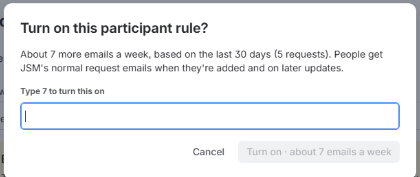
Flip the rule's On switch and the app asks: Turn on this participant rule? About 7 more emails a week, based on the last 30 days (5 requests). Type 7 and press Turn on · about 7 emails a week. A wrong number keeps the button off.
Turning off and undo
- Turning a rule off stops it at once. Requests already handled keep their participants.
- Undo takes the participants the rule added off open requests (Undo · take 12 participants off open requests). It never removes a participant someone else added, and removing participants sends no email.
- Delete (Delete rule · participants stay) stops the rule; use Undo first if you want its participants off.
- Pause all stops participant rules too. A lapsed license stops them.
- Changing a rule turns it off: turn it on again with the new estimate.
- Project admins can manage participant rules for their own project, if your site admin allowed project admins in Settings.